


QUICK ANSWER
On a documentation site you manage, replace a generic title such as “Code” with the specific task or reference the page covers. Check the published browser title, main heading and internal links together.
A documentation library can grow from one page called “Code” into separate pages for code examples, a reference table and a contributor guide. Readers need a way to tell them apart before opening each page. Editors need that distinction too, especially if several pages use the same publishing template.
Treat ext:asp intitle:code as a prompt to review naming in your own documentation inventory. The age or suffix of a URL matters less to the reader than whether the title tells them which material they are about to open. Start with the pages linked from your documentation menu or listed in your CMS.
Decide what kind of document the title should identify
Look first at the page’s actual purpose. “Code” could introduce a coding standard, a collection of example projects, or a table of reference numbers. A title should name the subject and, when the difference matters, the work a reader can do on that page. An overview called “Contribution code examples” and a guide called “Format code for a documentation contribution” offer different starting points.
Google Search Central’s title-link guidance recommends concise and descriptive titles and cautions against repeating boilerplate across pages. A recurring site name can help readers place unfamiliar pages, but the part that distinguishes one document from another should be easy to see. Keep useful qualifiers such as a product, version or language when a reader would use them to choose a page.
| Page purpose | Generic label | More useful title |
|---|---|---|
| Find a reference number | Code | Reference numbers for archived documents |
| See example material | Code examples | Examples for the documentation starter project |
| Follow a contribution rule | Code | Code style for documentation contributors |
| Read a versioned reference | Codes | Document status codes in version 2 |
Trace a generic title back to the source
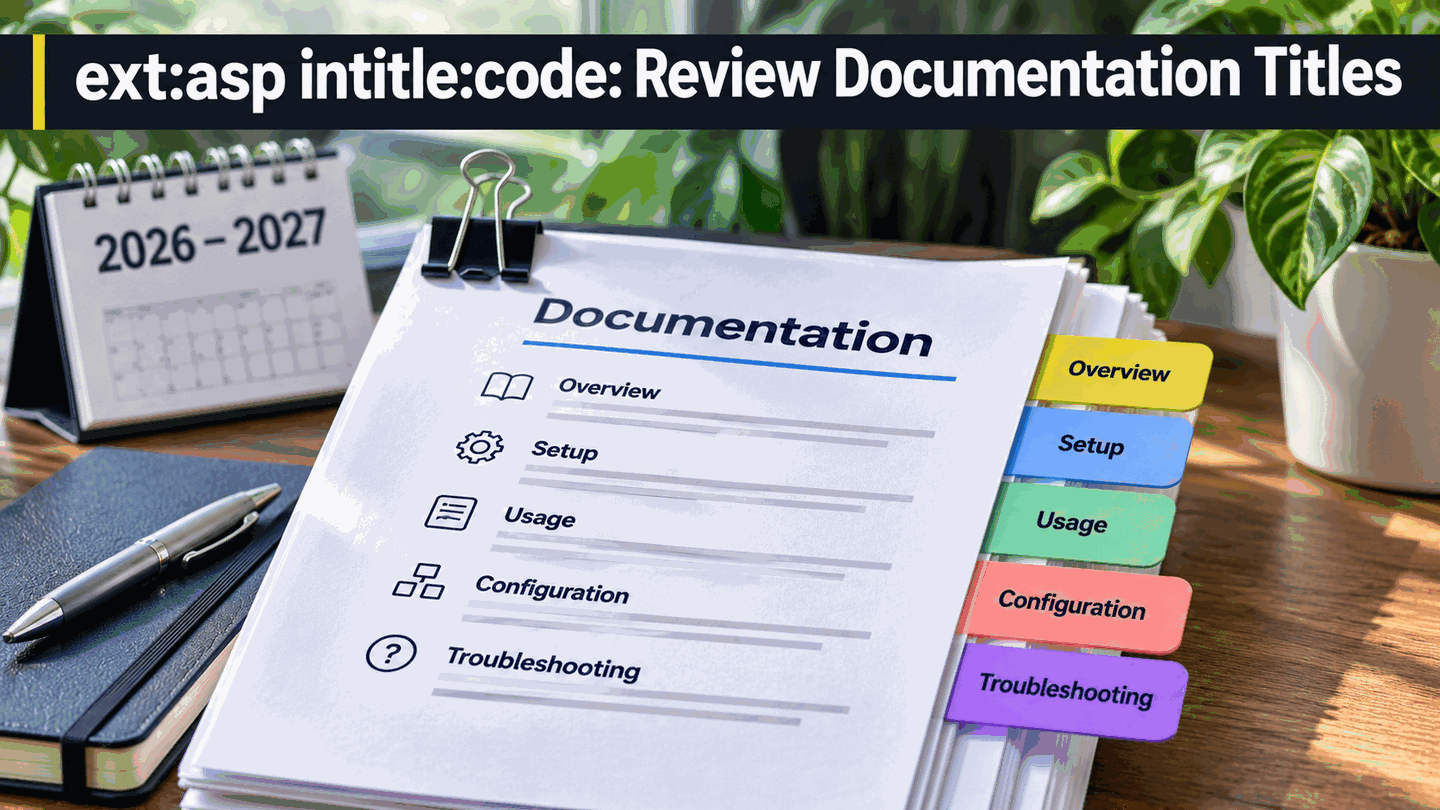
Open an affected page from your own site and record its browser-tab title, visible main heading and wording in the menu. The HTML standard’s title-element definition describes the title as the document’s name. The visible heading appears inside the page. The link that led to it may have been written separately. A problem in one field can survive an edit to another.
If the browser and main heading both say “Code,” start with the page’s editorial fields. If the main heading already gives a useful name while the browser tab still uses a generic label, ask whoever manages the template which field it publishes as the HTML title. Sample another page in the same section before changing a common rule. An empty field on one page and a fixed template label across a section need different corrections.
Use a fallback that remains meaningful
When a template needs a fallback, a specific page heading often gives a reader more context than a broad section label. Test the agreed rule on a page with a manually supplied title, a page that needs a default and a translated or versioned page if those are part of the library. Check an unusually long heading as well. The fallback should preserve the detail that lets the reader know they picked the right document.
If an older address works and still serves the same document, edit the title there. A URL migration creates a separate set of decisions about redirects and old references. There is no need to take on that work just because a browser tab uses a poor name. Keep the working address in your review sheet so the team can confirm which exact page was edited.
Check clues people use to navigate
Read the entry in your menu and the first prominent heading together. A link called “Code” could be reasonable inside a short list of clearly labelled subtopics, while the document title may need another word or two to stand on its own. If the menu sends people to a guide about examples, avoid giving the document a title that promises a rules reference. Align the labels around the same subject.
After publication, confirm the anticipated title and heading on the exact page. Use Search Console URL Inspection for the verified property you manage if you also need Google’s indexed information. A live page check and an indexed record answer different questions. Google generates search title links automatically, so the final wording can differ even when your own labels agree.
Questions about documentation titles
Should I put the programming language in the title?
Add it when the document applies to one language and readers might otherwise open the wrong example. If the document is language-neutral, use the space to name the task or reference instead.
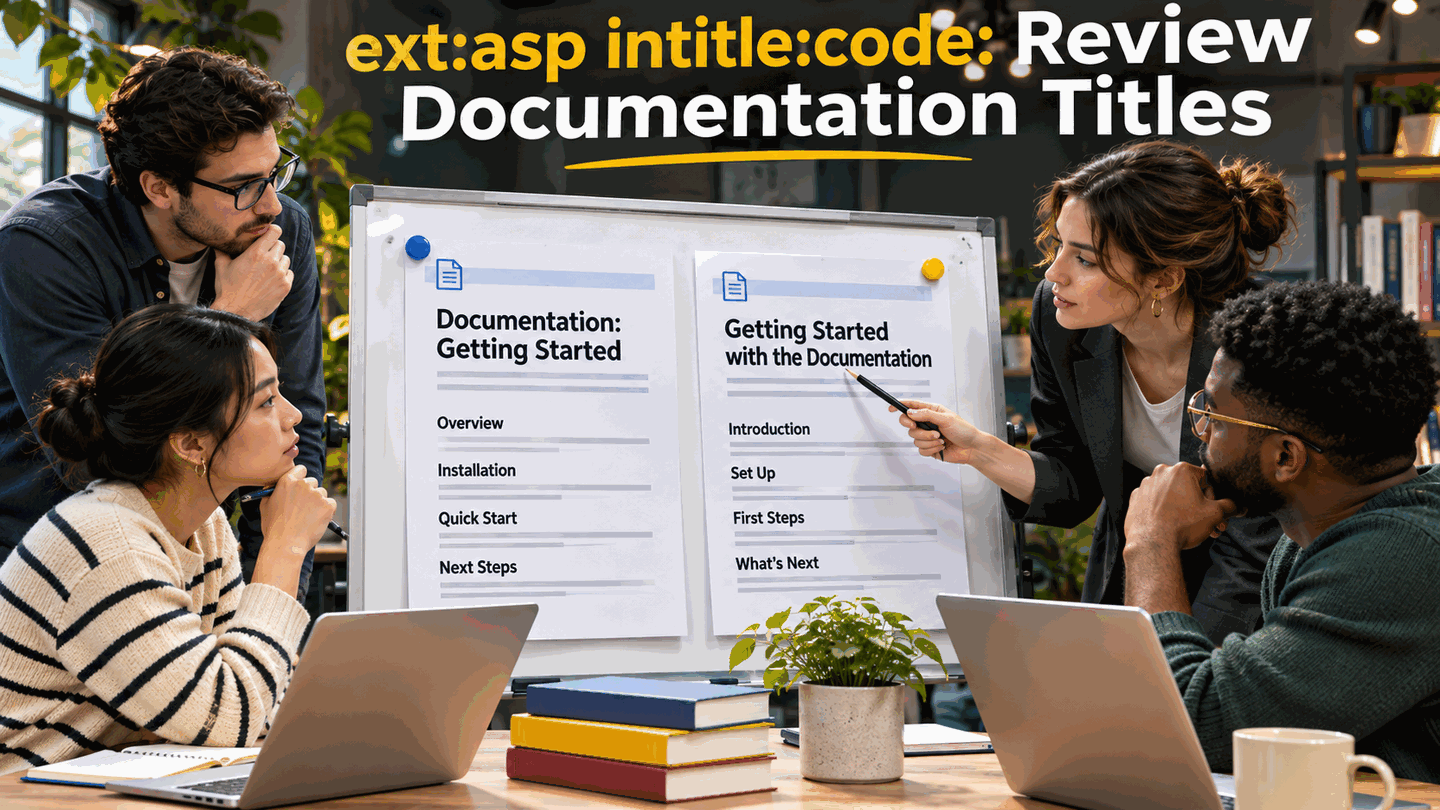
Should every title use exactly the same pattern?
Consistency helps within a series, especially when there are several versions. Use a pattern that still leaves room for the specific topic. Test it on pages that a reader might confuse with one another.
Does updating a title also update the navigation?
That depends on the publishing system. Some navigation labels follow a page field and others are edited independently. Confirm the browser tab, heading and navigation after publication so a change in one does not leave confusing wording in the others.
For related reading, see our guides to why search titles can differ and the difference between addresses and headlines.
