



QUICK ANSWER
When pages on a site you manage all show a title such as “Page,” check the title field and shared template. Give each page a specific title that reflects the content readers will find.
A reader opens three results for your organization. One is a guide to printer setup, another covers replacing an ink cartridge, and the last explains how to return a device. If every result says “Page,” the reader has to open links to find the right one. The difference that matters is already in the content. The title should make it visible sooner.
The term ext:asp intitle:page raises a useful editorial question for people looking at older materials: how do generic titles survive on a site after editors have given the pages better names? The answer often becomes clearer when you compare the title in a publishing system with the title the website produces. Review the pages you already manage, using links from your own publishing records or sitemap.
Check which title field is actually used
The HTML standard’s definition of the title element explains that the title represents the document’s name. Browsers can display that name in the tab. A visible heading names the content on the page itself. In a publishing system, editors may control both with the same field, or a template may generate them separately.
Start by opening one affected page from your own inventory. Write down the browser title and the main heading. Then check the page’s title setting in your publishing system. If the setting and heading are specific but the browser displays “Page,” ask the template owner to check what the layout publishes as the document title. If all three are vague, fixing the editorial field may make more sense than changing the template.
Treat the address suffix as an inventory clue. A page served from an older address can have a clear title, and a new address can carry an old fallback. If links are already working, a title cleanup can concentrate on what readers see without moving the pages.
| What you observe | Where to look first | Useful fix |
|---|---|---|
| Browser tab and headline both say “Page” | Page settings and headline field | Give the item a specific subject |
| Headline is clear but the browser tab says “Page” | Template output or SEO title field | Connect the output to the correct field |
| Every item repeats the same long wording | Shared template and site-name pattern | Retain the detail that distinguishes each item |
| The published page is fixed but the result still shows old wording | Search Console and crawl timing | Compare live and indexed information |
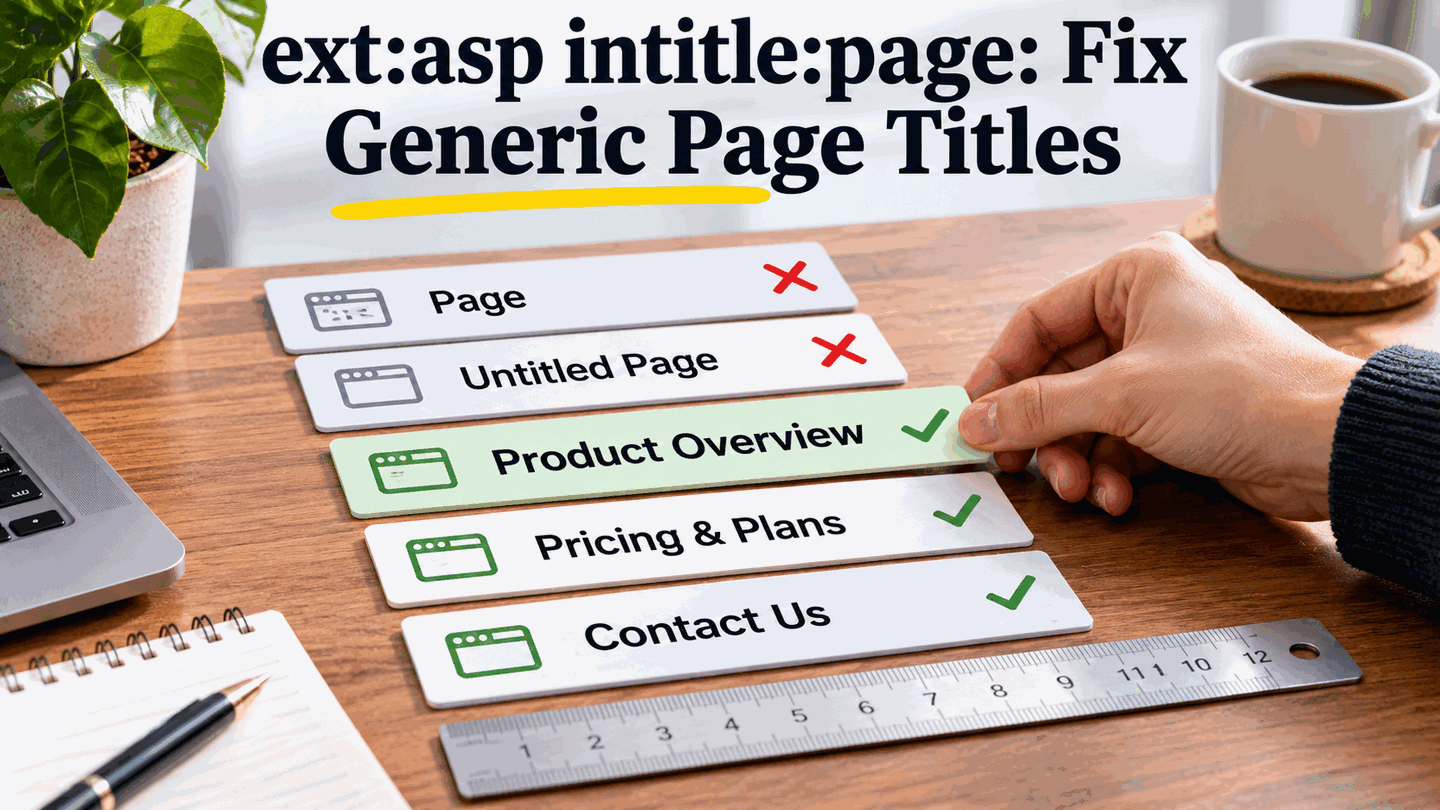
Name the job each page does
Google’s title-link guidance recommends concise, descriptive titles and warns against repetitive wording and vague labels. If you have two pages about printer ink, decide what each one helps the reader accomplish. “Replace a printer cartridge” names a task. “Return an unused printer cartridge” names a different one. A reader can pick the right result without having to know which departmental label you use internally.
Add a detail when it changes the choice. If two guides apply to different models, identify the model in each title. If one page serves a particular country or an older supported release, include that information when useful. A title does not need every keyword in the article. A short identifying detail often contributes more than a list of related terms.
Review the repeatable rule before updating a whole section
Test the title pattern on several of your pages before applying it broadly. Include a short item, a long item, a page that already has an editorial title and one that receives a fallback. If the team publishes translations or editions, add an example from each group. The exercise may reveal a missing field or a default label copied from another page type.
Ask a second reader to pick the right title for a specific job without hearing the page description beforehand. If the reader cannot choose between two titles, decide whether the pages serve different needs and specify that difference. If both really do the same job, discuss how you want readers to reach the preferred version before polishing names separately.
Verify publication and search separately
Once an update is live, revisit the exact address and confirm that the browser displays the intended title. Check the prominent heading as well. If the page shows several headings of similar weight, consider which is meant to identify the main content. Update internal links when their wording points readers toward a different subject.
For a page on a site you control, Search Console URL Inspection offers indexed information and a separate live test. Keep these as separate observations. The live page can already show a corrected title while Google’s recorded view is older. Google also generates title links automatically from several sources, so a well-written HTML title is a useful signal, rather than a promise of identical result text.

Common questions about title cleanups
Does an old address need to change when the title changes?
A title and a URL identify different parts of a page. If the address works and continues serving the same content, update the title directly. Treat any URL move as a separate publishing decision.
Can the headline and browser title use different wording?
Yes. The browser title can add useful context for someone seeing the page on its own. Both should identify the same subject and make sense to readers.
How many pages should a title test cover?
Start with examples from the page types you’ll change. If several share a template, check both ordinary cases and pages with missing or unusually long fields. Record what you expected and what each page actually publishes.
For related reading, see how page titles and search titles differ and how short labels can make headlines ambiguous.
